> ## Documentation Index
> Fetch the complete documentation index at: https://larkup.de/documentation/llms.txt
> Use this file to discover all available pages before exploring further.
# Talk to Your Custom AI from Social Media
> Launch your Agent Server, then connect it to Telegram, Slack, or Discord.
## Launch the Agent Server
Open **Settings → Larkup Server → Server**, switch the toggle to **Agent**, and select **Launch server**.
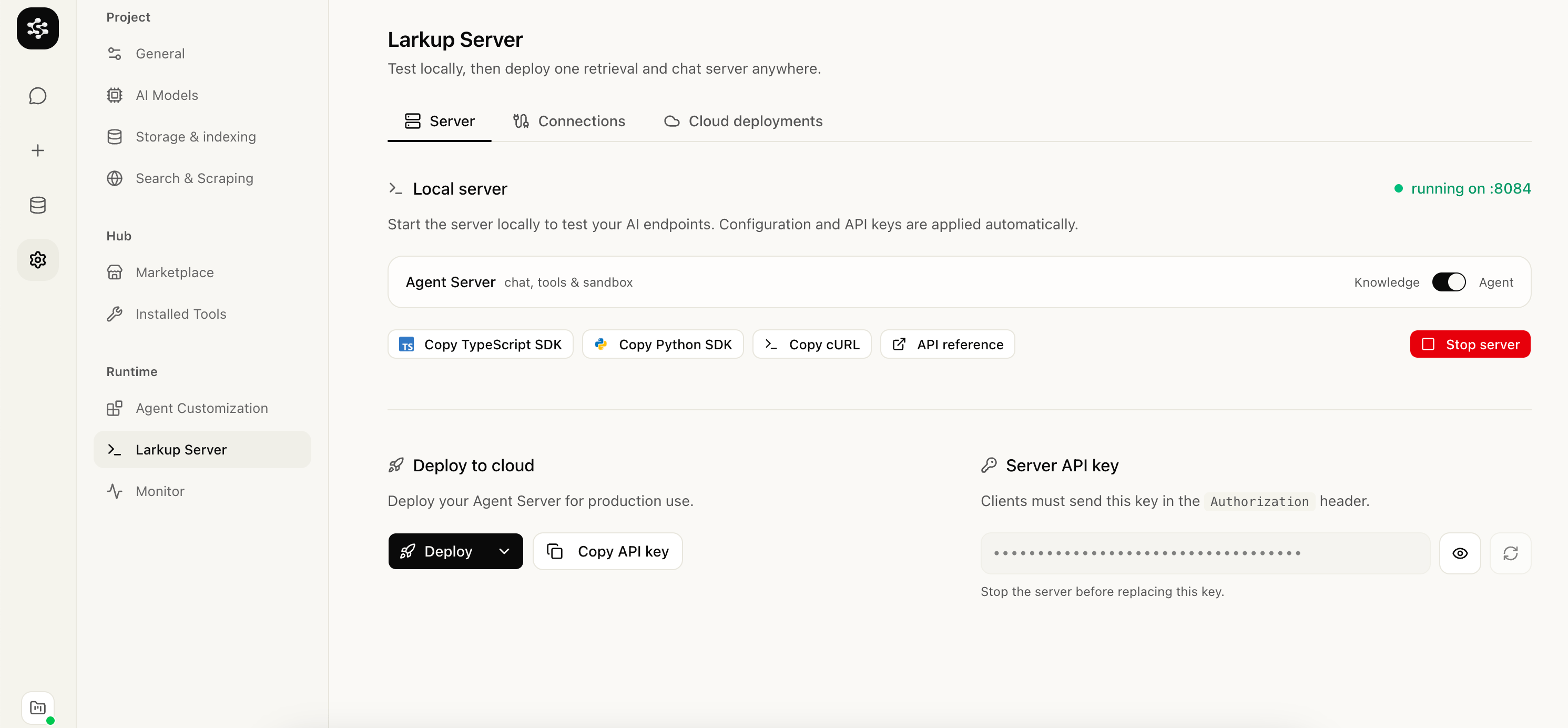 If the Agent runs on your computer, it needs a public HTTPS address for a channel provider to reach it. Larkup can start a free ngrok tunnel for you when you connect a channel below.
## Connect a channel
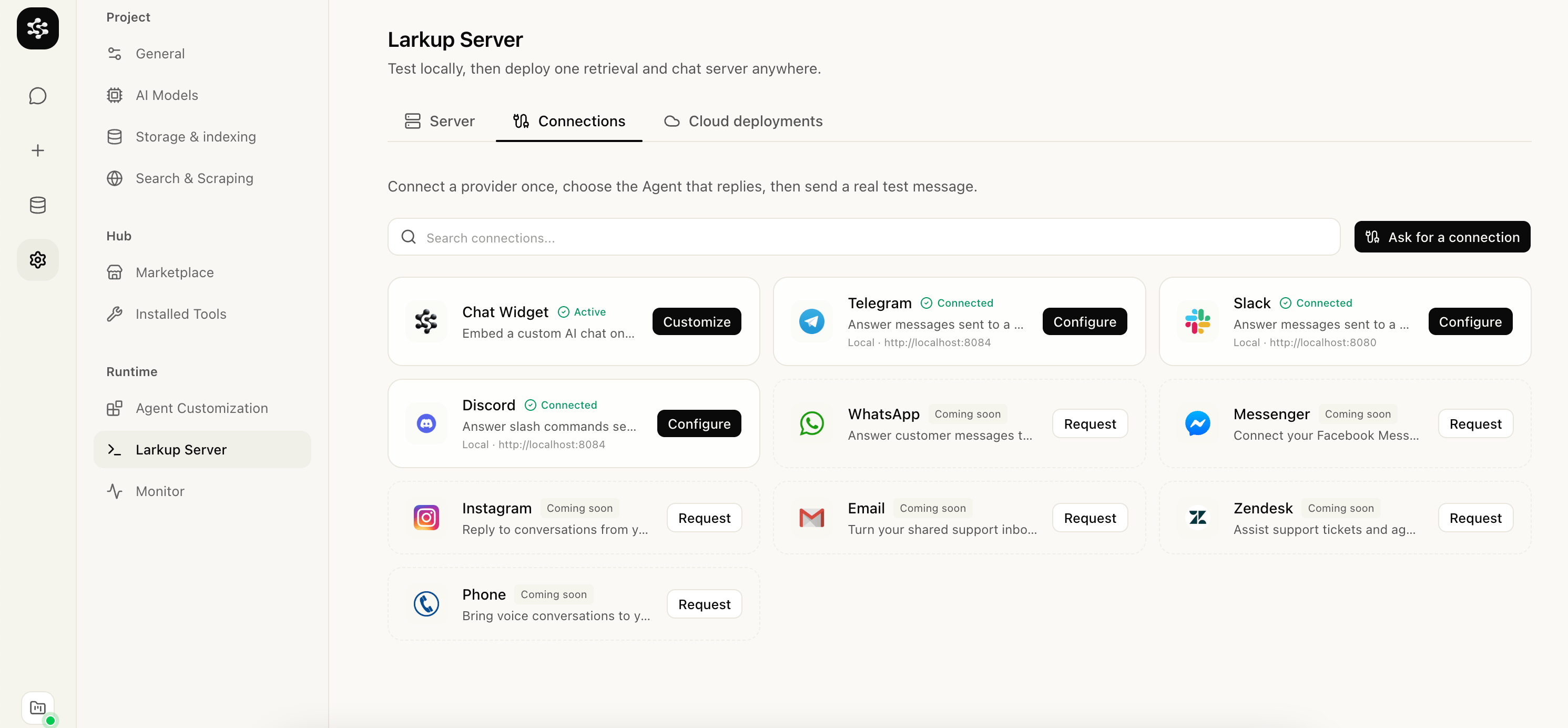
Open **Settings → Larkup Server → Connections** and choose Telegram, Slack, or Discord. Every channel starts the same way: pick the Agent that should answer, then connect the provider.
If the Agent runs on your computer, it needs a public HTTPS address for a channel provider to reach it. Larkup can start a free ngrok tunnel for you when you connect a channel below.
## Connect a channel
Open **Settings → Larkup Server → Connections** and choose Telegram, Slack, or Discord. Every channel starts the same way: pick the Agent that should answer, then connect the provider.
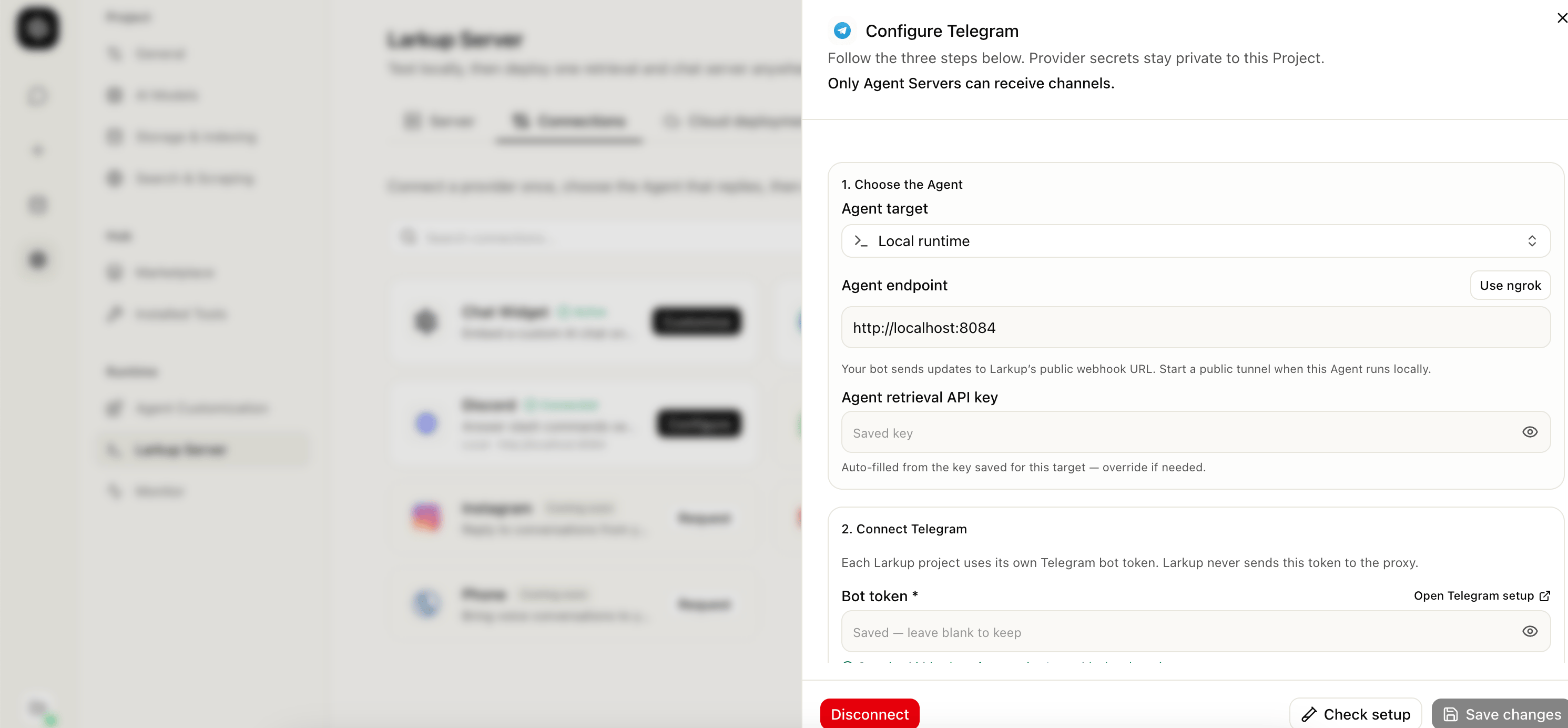
 1. Open [@BotFather](https://t.me/BotFather) in Telegram, create a bot, and copy its token.
2. Select **Telegram**, choose the Agent that should answer, paste the token, and save.
Larkup registers the webhook automatically.
1. Open [@BotFather](https://t.me/BotFather) in Telegram, create a bot, and copy its token.
2. Select **Telegram**, choose the Agent that should answer, paste the token, and save.
Larkup registers the webhook automatically.
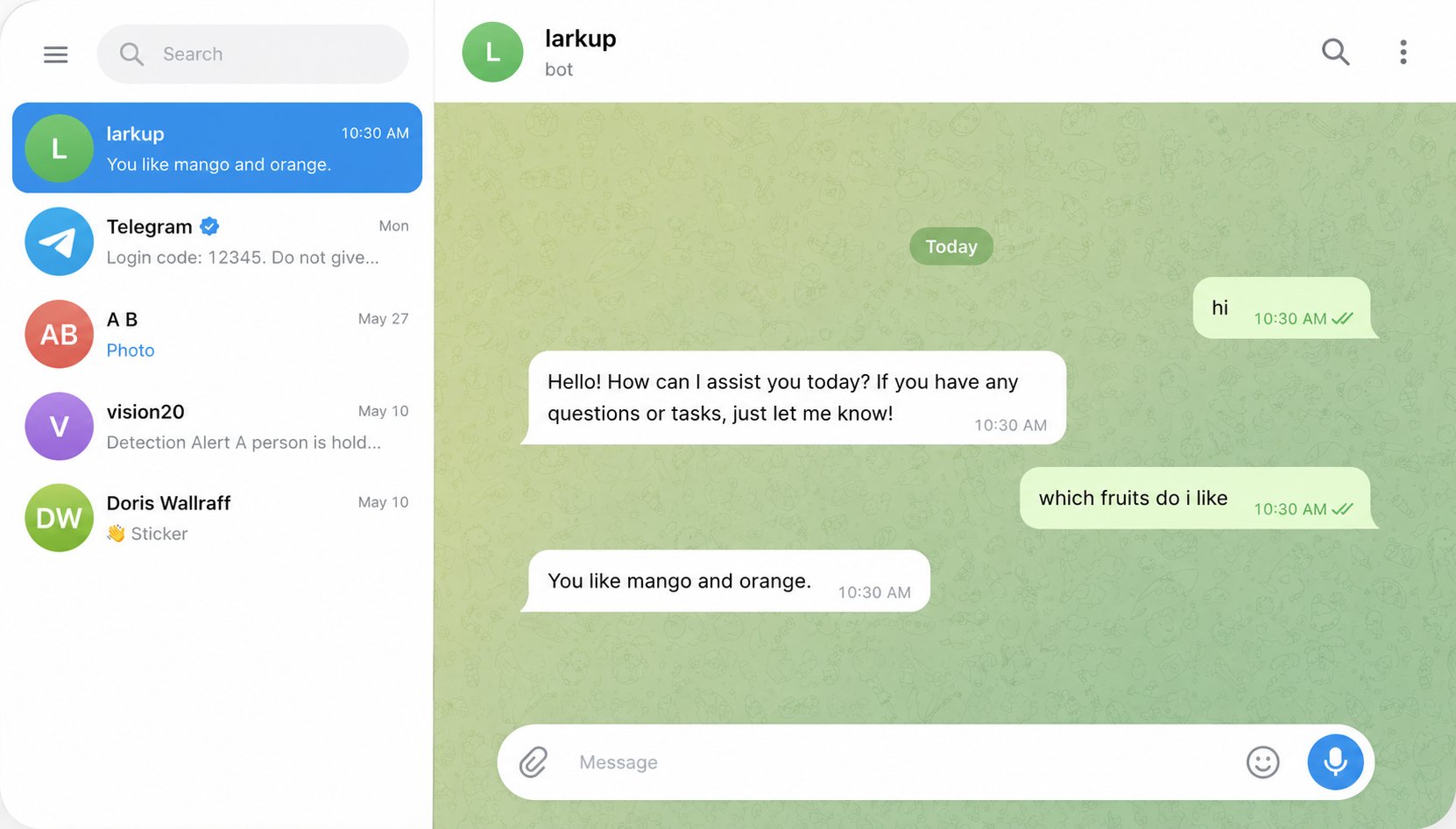
 3. Larkup shows an **Open Telegram bot** button once it verifies the bot. Send it a message.
 1. Select **Slack**, choose the Agent, and set its endpoint. Use **Use ngrok** if the Agent runs locally.
2. Choose **OAuth**, then **Connect with Slack** and approve the app for your workspace. A workspace admin approves it once; nobody needs to copy a token.
1. Select **Slack**, choose the Agent, and set its endpoint. Use **Use ngrok** if the Agent runs locally.
2. Choose **OAuth**, then **Connect with Slack** and approve the app for your workspace. A workspace admin approves it once; nobody needs to copy a token.
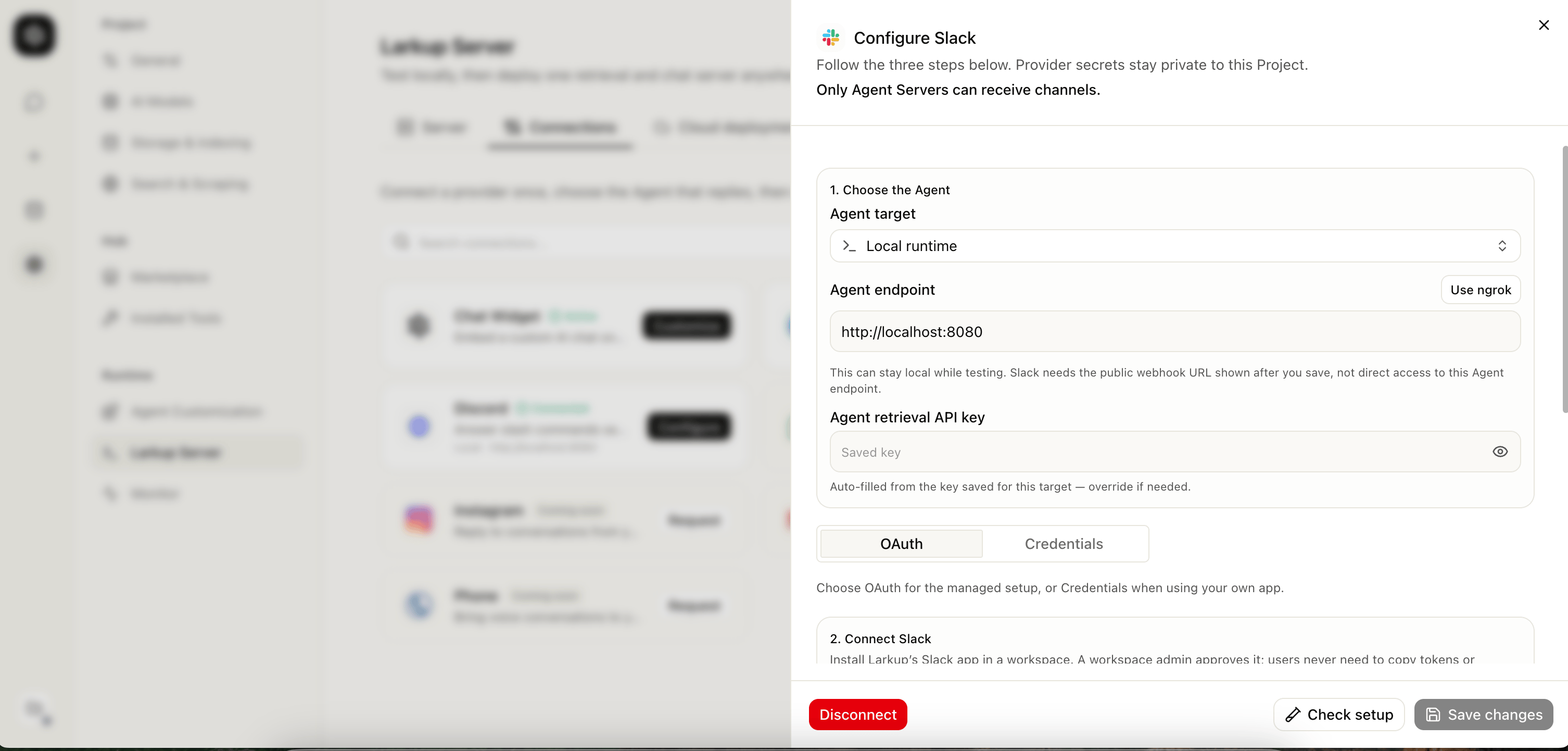 3. Mention the bot in a channel, or message it directly.
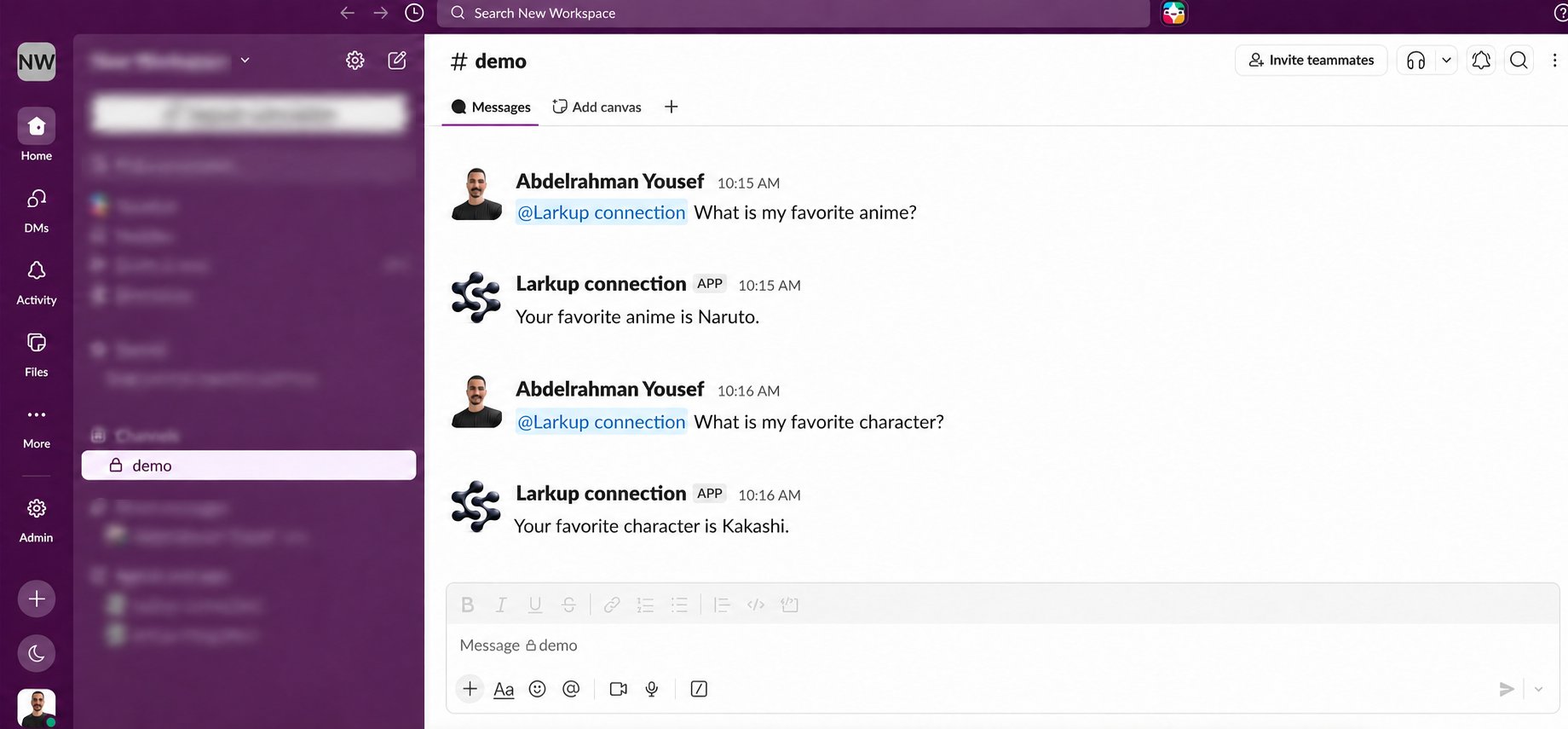 Want your own Slack app, name, and icon? Choose **Credentials** instead and paste your app's bot token and signing secret.
1. Select **Discord**, choose the Agent, and set its endpoint. Use **Use ngrok** if the Agent runs locally.
2. Choose **OAuth**, then add Larkup's Discord app to one server.
Want your own Slack app, name, and icon? Choose **Credentials** instead and paste your app's bot token and signing secret.
1. Select **Discord**, choose the Agent, and set its endpoint. Use **Use ngrok** if the Agent runs locally.
2. Choose **OAuth**, then add Larkup's Discord app to one server.
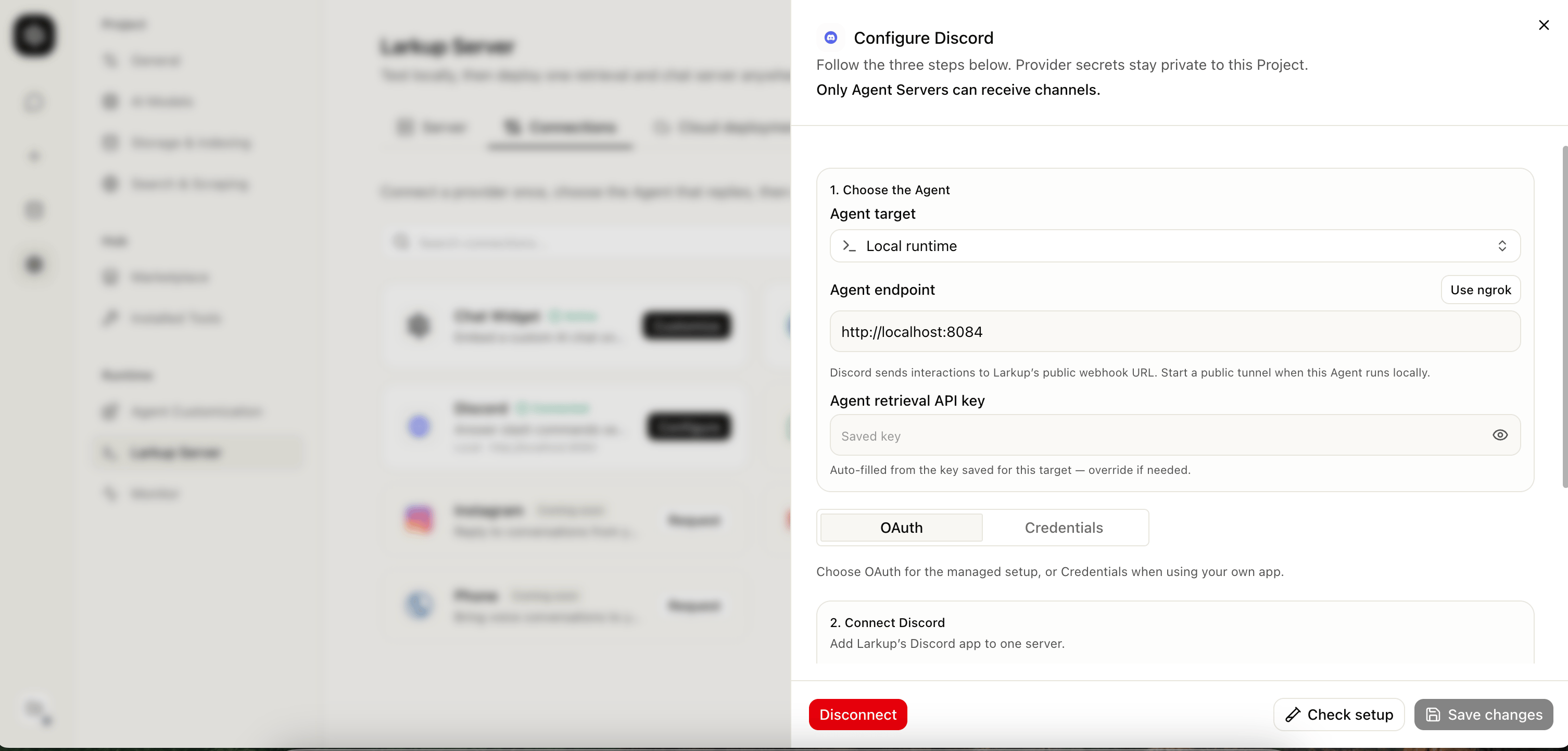 3. Mention the bot in a channel.
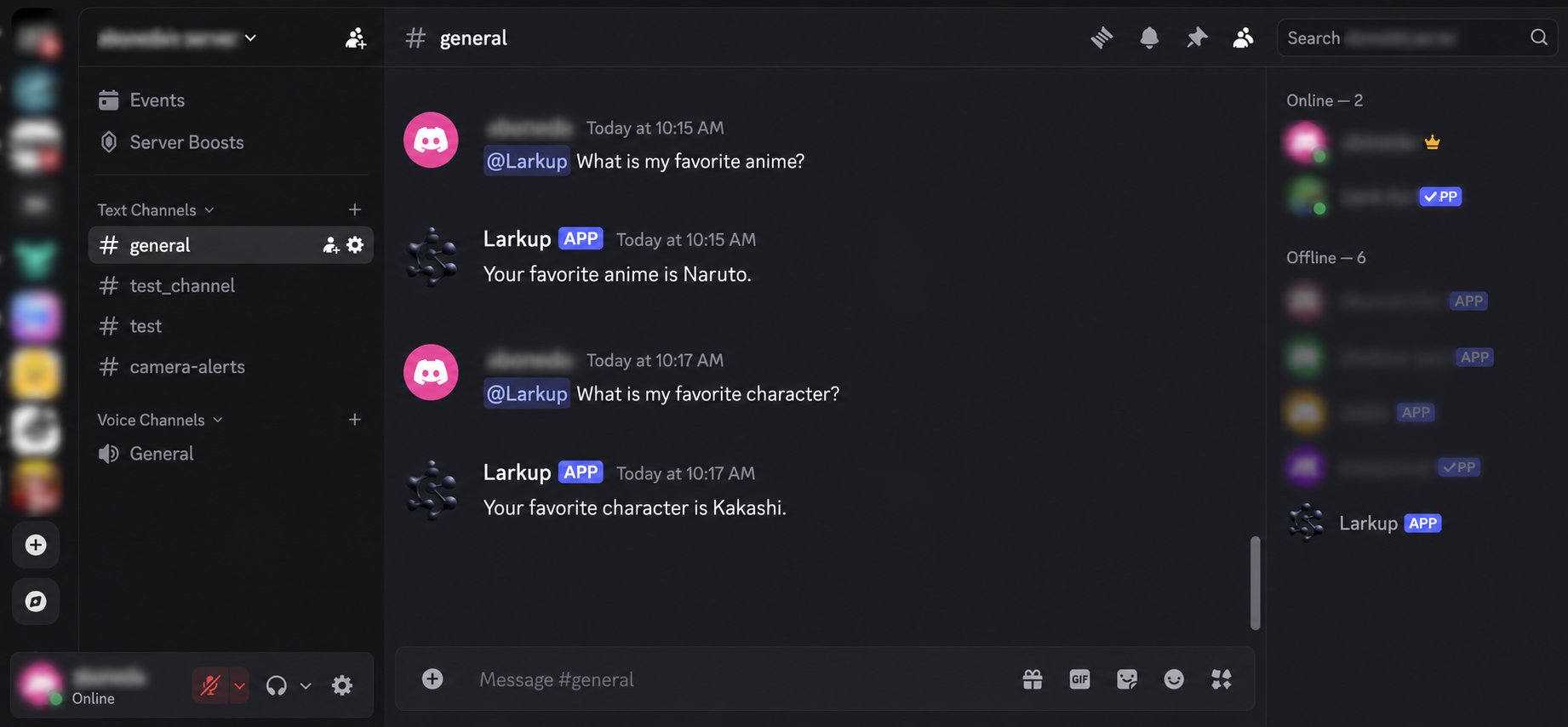 Want your own Discord app? Choose **Credentials** and paste its application public key.
For a deployed Agent, Larkup uses its stable deployment URL automatically. No tunnel is needed.
Want your own Discord app? Choose **Credentials** and paste its application public key.
For a deployed Agent, Larkup uses its stable deployment URL automatically. No tunnel is needed.