> ## Documentation Index
> Fetch the complete documentation index at: https://larkup.de/documentation/llms.txt
> Use this file to discover all available pages before exploring further.
# Sign and Fill Documents
> Upload a PDF or form, then use Chat to sign it, fill fields, and export the result.
The Document Editor tool brings a live Canvas preview into Chat. You upload a PDF, Word document, or form, ask the AI to fill or sign it, review the result visually, and download the finished file.
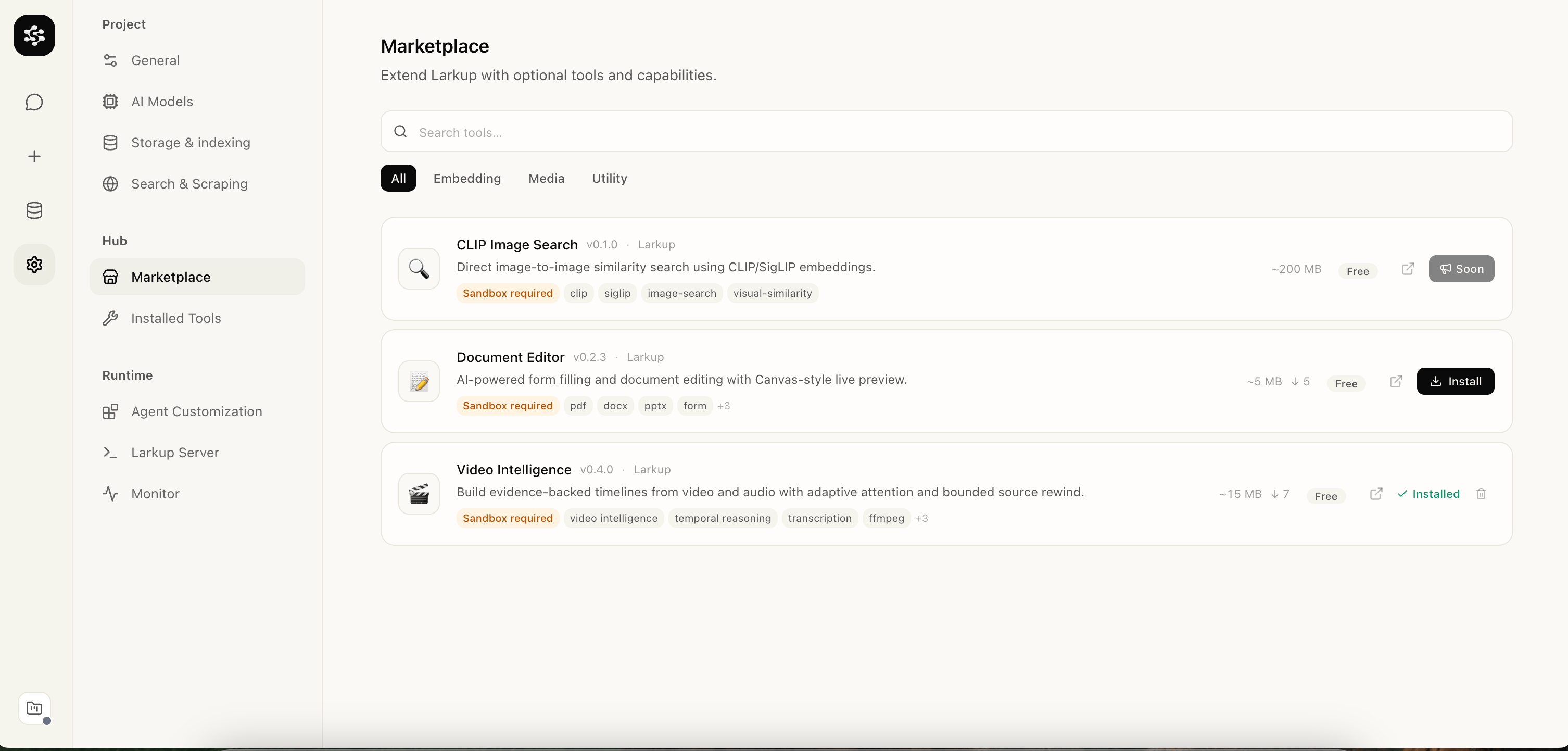
## Installing the tool
Go to **Settings → Marketplace** and install **Document Editor**.
 ## Uploading your document
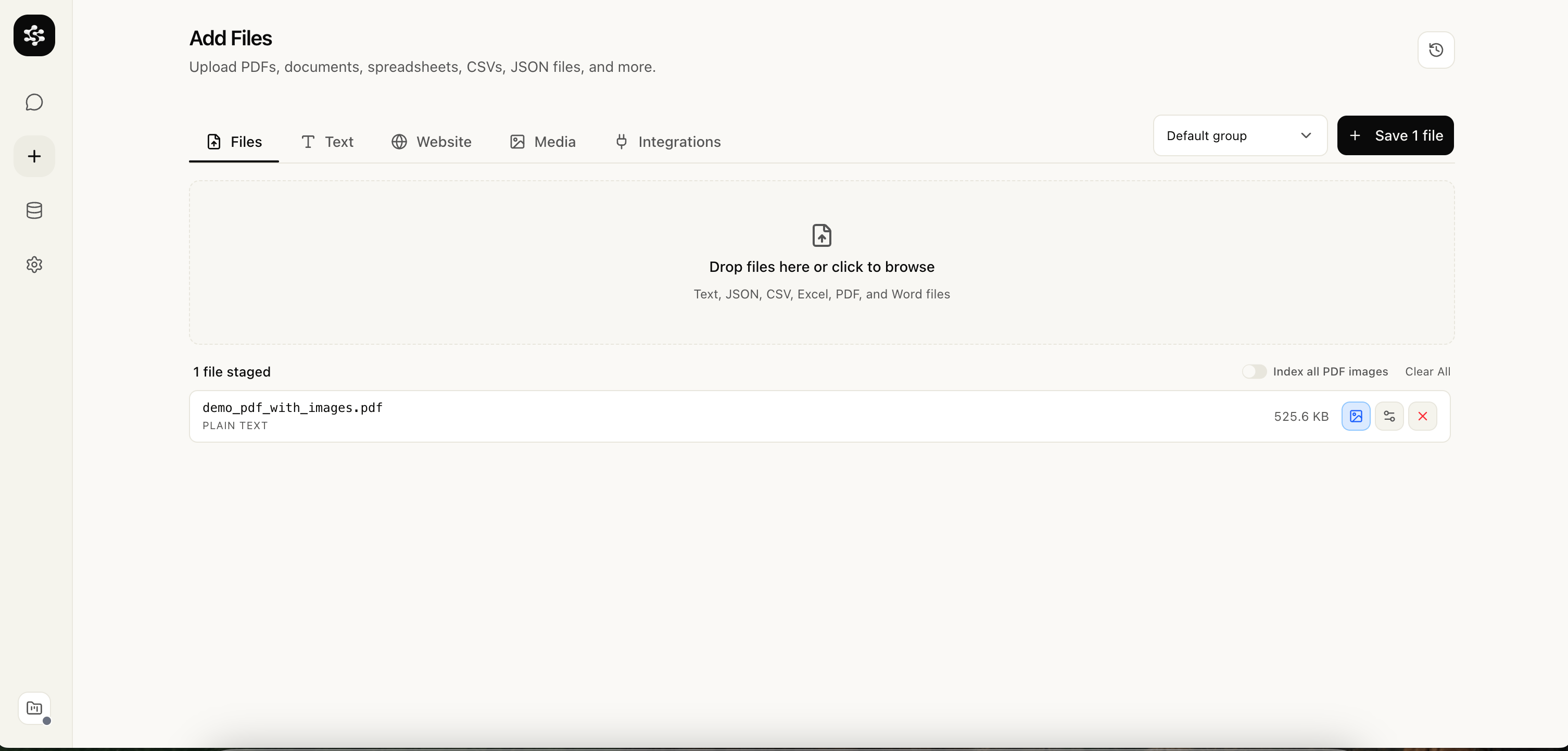
Go to **Data → Files** and upload your PDF or Word document. Larkup indexes it and makes it available in Chat.
## Uploading your document
Go to **Data → Files** and upload your PDF or Word document. Larkup indexes it and makes it available in Chat.
 ## Signing and filling in Chat
Open **Chat** and ask the AI to sign or fill the document. For example:
> "Sign demo\_sign.pdf on page 1"
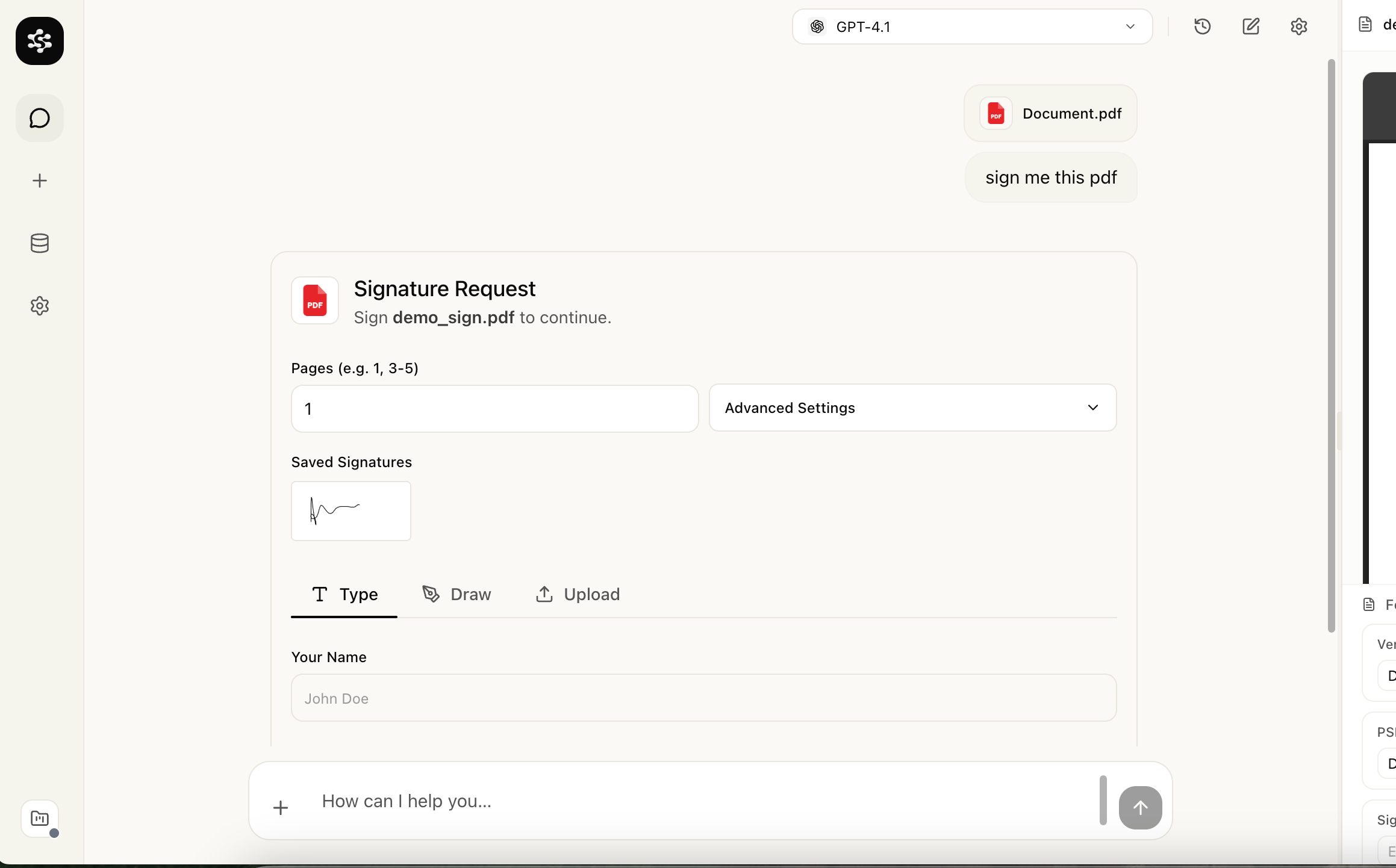
Larkup detects the signature fields and opens a signature widget inline. You can type your name, draw a signature, or upload an image. Your saved signatures are available for reuse across documents.
## Signing and filling in Chat
Open **Chat** and ask the AI to sign or fill the document. For example:
> "Sign demo\_sign.pdf on page 1"
Larkup detects the signature fields and opens a signature widget inline. You can type your name, draw a signature, or upload an image. Your saved signatures are available for reuse across documents.
 After confirming, you can preview the placed signature on the document before finalizing.
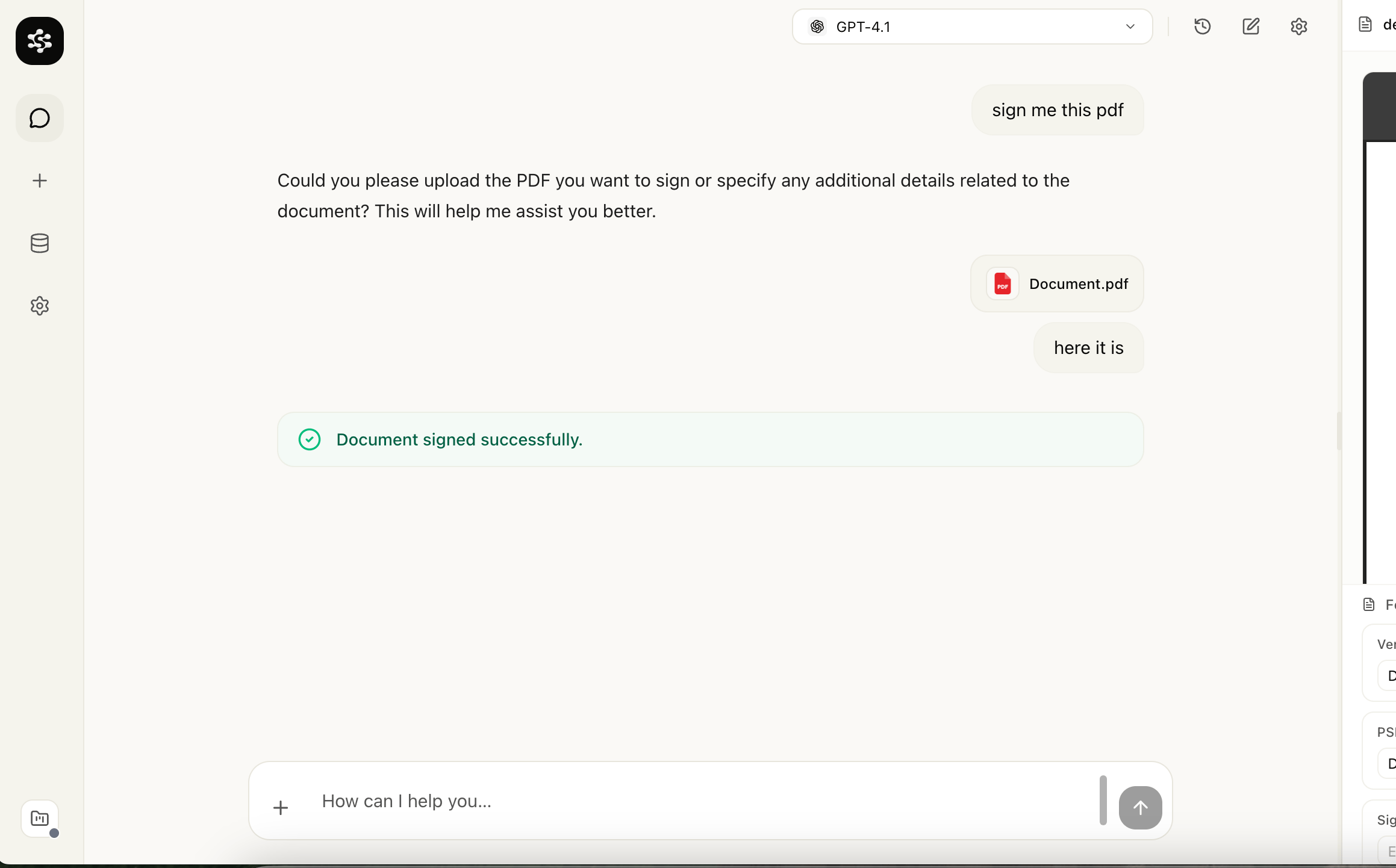 The same flow works for filling form fields. Describe what you want filled and the AI identifies the right field and inserts the value. You can also ask it to update existing content, reformat sections, or add new text blocks, all with a live preview before you export.