> ## Documentation Index
> Fetch the complete documentation index at: https://larkup.de/documentation/llms.txt
> Use this file to discover all available pages before exploring further.
# Build Your RAG Server
> Generate, launch, and deploy a complete RAG backend.
Developer
The core power of Larkup is turning your raw data into a deployable, high performance RAG API in minutes. You can build your server using either our visual Web UI or the CLI.
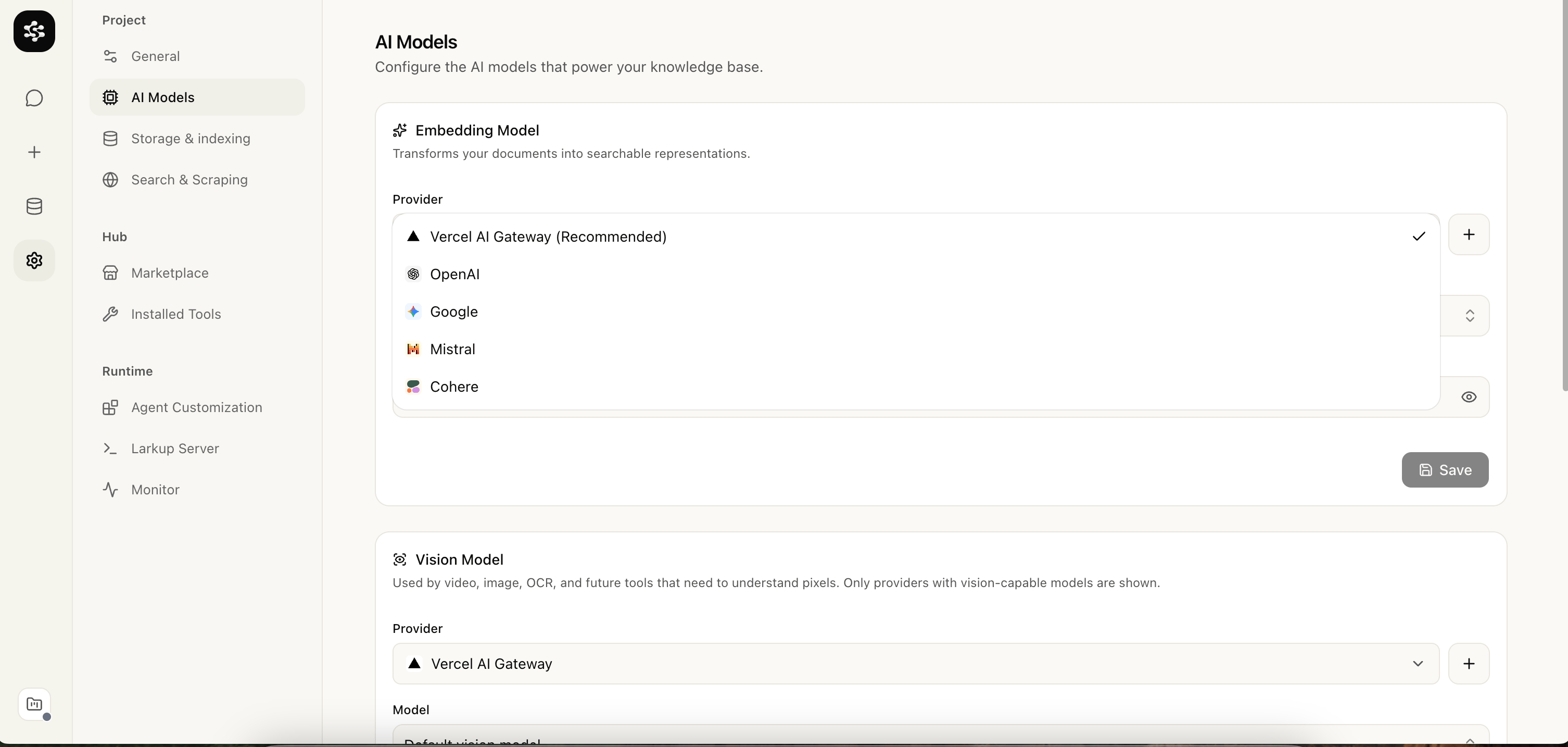
Start by configuring your preferred **Vector Store** (e.g., LanceDB, Pinecone) and **Embedding Model** (e.g., OpenAI, Cohere) in AI Models.
 Navigate to the **Data** tab to upload files, paste raw text, scrape websites, or connect an integration. These sources queue up as ingestion jobs and index automatically.
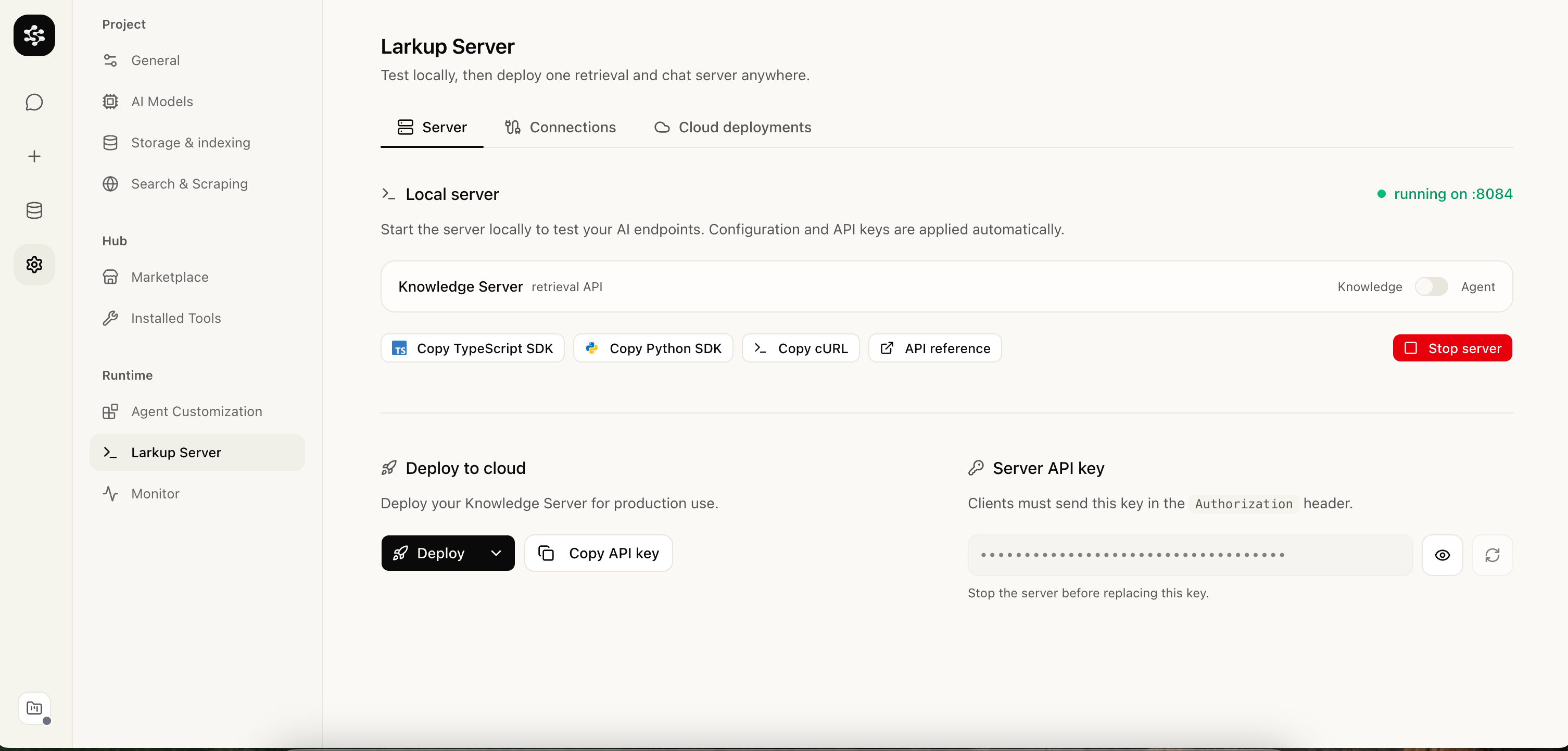
Go to **Larkup Server** and select **Launch server** to test the generated retrieval API locally. The deploy flow produces the full agent server with streamed chat and a website widget.
Navigate to the **Data** tab to upload files, paste raw text, scrape websites, or connect an integration. These sources queue up as ingestion jobs and index automatically.
Go to **Larkup Server** and select **Launch server** to test the generated retrieval API locally. The deploy flow produces the full agent server with streamed chat and a website widget.
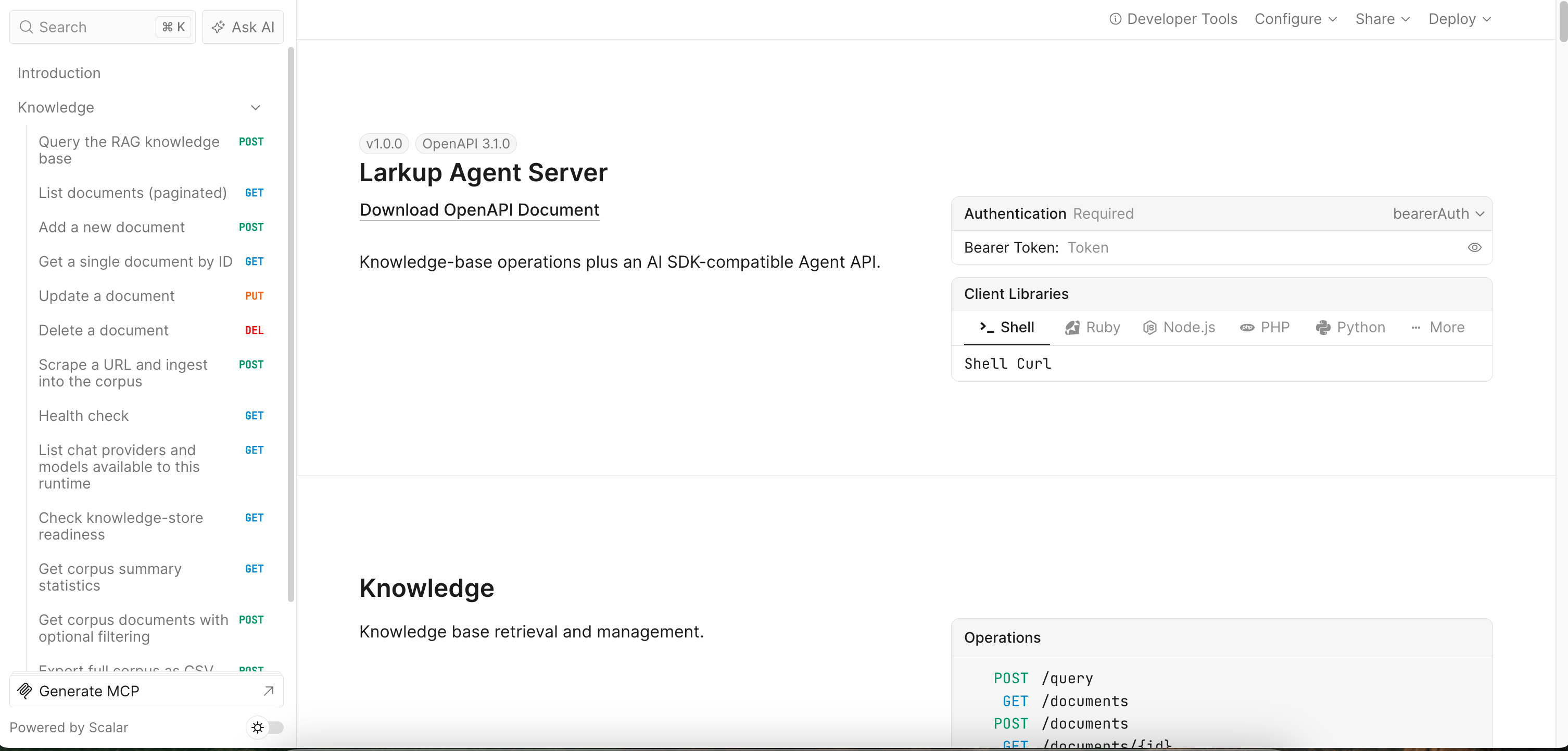
 Every server ships an interactive reference at `/reference`.
 ```bash theme={null}
larkup dev
```
The first run asks for a project name, then creates the workspace and starts its local server.
```bash theme={null}
larkup index ./knowledge
```
Loads files and folders, then builds the vector index.
```bash theme={null}
larkup query "What is in my knowledge base?"
larkup chat
```
## The Generated Server
When you launch your server, Larkup creates an optimized backend output directory. It contains everything you need and nothing you don't:
* **Zero Bloat**: Only dependencies for your specific Vector Store are bundled.
* **No Build Step**: Runs directly as a Node ESM backend (`node server.mjs`).
* **One deployable agent surface**: server download and Vercel deployment include the same retrieval, streamed chat, and widget routes.
## Deploying to serverless
Local LanceDB is ideal for development and a VPS with a persistent disk. It is not durable on Vercel or other serverless platforms. Before deploying there, switch **Settings → Storage** to the S3 storage option for LanceDB and index your local source documents again. This stores LanceDB table files in your own S3 compatible bucket, so no LanceDB Cloud account is required.
For Cloudflare R2, create a private bucket and an Object Read & Write token restricted to that bucket. Use `s3:///larkup/` as the database URI, `https://.r2.cloudflarestorage.com` as the endpoint, and `auto` as the region. AWS S3 works with the same mode: leave the endpoint blank and use the bucket's AWS region. The deployed Vercel server receives these credentials as encrypted project environment variables.
Vercel Blob is suitable for original files and media. Use S3 compatible object storage for the mutable LanceDB table files.
After deployment, copy the widget snippet from **Settings → Larkup Server** to add the chat UI to a website.
## SDK Usage
Because Larkup exposes an OpenAI compatible API, you can connect with your favorite AI tools and SDKs. See [Vercel AI SDK](/documentation/documentation/sdk/integrations/ai-sdk) and [LangChain](/documentation/documentation/sdk/integrations/langchain) for ready to use snippets in TypeScript and Python.
## Next Steps
Your server is now live at `http://localhost:8080`.
* [**Deploy your server**](/documentation/documentation/developer/deploy) to Vercel, Docker, or a VPS, then add a chat widget to your website using your new API.
```bash theme={null}
larkup dev
```
The first run asks for a project name, then creates the workspace and starts its local server.
```bash theme={null}
larkup index ./knowledge
```
Loads files and folders, then builds the vector index.
```bash theme={null}
larkup query "What is in my knowledge base?"
larkup chat
```
## The Generated Server
When you launch your server, Larkup creates an optimized backend output directory. It contains everything you need and nothing you don't:
* **Zero Bloat**: Only dependencies for your specific Vector Store are bundled.
* **No Build Step**: Runs directly as a Node ESM backend (`node server.mjs`).
* **One deployable agent surface**: server download and Vercel deployment include the same retrieval, streamed chat, and widget routes.
## Deploying to serverless
Local LanceDB is ideal for development and a VPS with a persistent disk. It is not durable on Vercel or other serverless platforms. Before deploying there, switch **Settings → Storage** to the S3 storage option for LanceDB and index your local source documents again. This stores LanceDB table files in your own S3 compatible bucket, so no LanceDB Cloud account is required.
For Cloudflare R2, create a private bucket and an Object Read & Write token restricted to that bucket. Use `s3:///larkup/` as the database URI, `https://.r2.cloudflarestorage.com` as the endpoint, and `auto` as the region. AWS S3 works with the same mode: leave the endpoint blank and use the bucket's AWS region. The deployed Vercel server receives these credentials as encrypted project environment variables.
Vercel Blob is suitable for original files and media. Use S3 compatible object storage for the mutable LanceDB table files.
After deployment, copy the widget snippet from **Settings → Larkup Server** to add the chat UI to a website.
## SDK Usage
Because Larkup exposes an OpenAI compatible API, you can connect with your favorite AI tools and SDKs. See [Vercel AI SDK](/documentation/documentation/sdk/integrations/ai-sdk) and [LangChain](/documentation/documentation/sdk/integrations/langchain) for ready to use snippets in TypeScript and Python.
## Next Steps
Your server is now live at `http://localhost:8080`.
* [**Deploy your server**](/documentation/documentation/developer/deploy) to Vercel, Docker, or a VPS, then add a chat widget to your website using your new API.